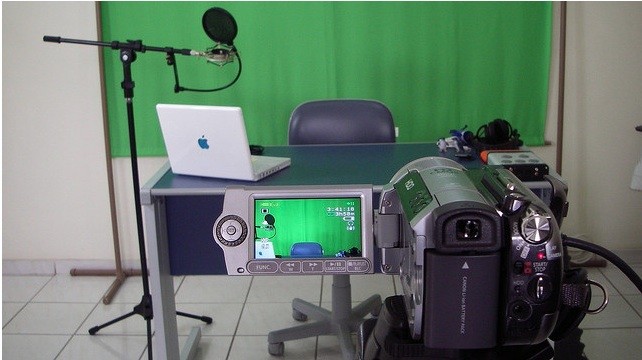
Video is becoming an online content powerhouse.
And as video becomes more of the norm in terms of consuming content online, it’s important to stay up to date with using video on your blog, your social networking sites, and of course on my favorite social site for business… LinkedIn.
Why Video and LinkedIn
If you read this blog, then you know I’m a huge believer in the power of using LinkedIn to build your business or professional goals. So what does adding video to your profile have to do with this?
Think about it for a second. When you search on LinkedIn and browse various profiles, what do 99% of them have in common?
They all look the same!
For the most part, all of the profiles look pretty boring. Of course people say different things, and some format their profiles better than others, but all in all, most lack character.
Stand Out From The Crowd
LinkedIn is currently one of the top 25 websites in the world according to the Alexa Top 500, and as it’s growth continues to increase, you need to do what you can to have every advantage over your competitors. This is where adding a video to your profile helps.
Here is a step by step video explanation on how to add a video to your LinkedIn profile, what video you should add, and why it will help you improve your value on LinkedIn.
It’s fun to know you stand out from the rest of your competition, and video definitely helps you achieve this on LinkedIn.
Step 1. Create SlideShare.net Account and add application on LinkedIn
Step 2. Upload a video to YouTube
Step 3. Upload a presentation to your SlideShare account
Step 4. Insert your YouTube link in the first slide of your presentation
Step 5. Publish the SlideShare presentation on your profile
It’s amazing the reaction I receive from people who come to my profile and are amazed that they hear a voice and see a video when it’s totally unexpected (thanks again to Jim Kukral for providing the video recommendation for me).
I’d love to see you take the “LinkedIn video challenge” by uploading a video on your profile. Take action today and get this set up and you will be far ahead of your competition. Once completed, enter your profile link in the comments section below so everyone can see what video you added to your profile.
##
Did you find this post helpful? If so, please share this article on Twitter and Facebook and sign up to via email to be notified each time I publish a new article Here. Also, want to get more from your LinkedIn experience? Make sure to get the entire LinkedIn training course at www.linkedinfluence.com. I look forward to reaching your comments below.
Other related posts you might enjoy:
Image credit: Racum



[...] Proving it once again here. Amplify’d from http://www.lewishowes.com [...]
[...] Catch Attention through VideoAdding video with voice to your LinkedIn profile will surely make you stand out. You can add the SlideShare.net app to your profile which allows you to showcase presentations you may have, but it also allows you to add a video that auto plays when people land on your profile. Currently the video must be on YouTube for it to work, but it definitely adds a nice touch. Learn more about how to add video to your LinkedIn profile here. [...]
[...] can add in video to your LinkedIn profile by following Lewis’s tutorial. For a preview of what this looks like take a look at [...]
[...] can add in video to your LinkedIn profile by following Lewis’s tutorial. For a preview of what this looks like take a look at [...]
[...] can add in video to your LinkedIn profile by following Lewis’s tutorial. For a preview of what this looks like take a look at [...]
[...] can add in video to your LinkedIn profile by following Lewis’s tutorial. For a preview of what this looks like take a look at [...]
[...] in Your Profile You can add in video to your LinkedIn profile by following Lewis's tutorial. For a preview of what this looks like take a look at Lewis's [...]
[...] Autoplay a video, conference talks, PDFs, embed YouTube videos, add audio to make a webinar on LinkedIn: with a SlideShare account (free and Pro versions), you can upload any media content to your profile and it will automatically port to your LinkedIn profile or Facebook account. Reach everyone in your network instantly. (Howes shows you how to add video to your LinkedIn account here.) [...]
[...] Autoplay a video, conference talks, PDFs, embed YouTube videos, add audio to make a webinar on LinkedIn: with a SlideShare account (free and Pro versions), you can upload any media content to your profile and it will automatically port to your LinkedIn profile or Facebook account. Reach everyone in your network instantly. (Howes shows you how to add video to your LinkedIn account here.) [...]
[...] How to Add Video to Your LinkedIn Profile [...]
[...] How to Add Video to Your LinkedIn Profile
Now Even More Ways to Customize Your LinkedIn Profile
4 Minutes to Optimize a LinkedIn profile for SEO [...]
[...] How to Add Video to Your LinkedIn Profile [...]
[...] you want to add a video to your profile, here is a resourceful post by LEWIS HOWES which will walk you through the entire process. [...]
[...] If so, then add a sixty-second video that auto-plays on your profile every time someone lands on it. Tell people who you are, who you help, and how you help them in the first thirty seconds. Spend the final thirty seconds telling them to get in touch with you and to take action by connecting with you to see if they are a good fit for what you offer. You can learn how to add a video to your LinkedIn profile here. [...]
[...] 2. Slideshare – Sales prospects will be able to view company sales presentations right from LinkedIn when those PowerPoint presentations are uploaded to Slideshare. Another great feature that is underutilized is the ability to use Slideshare to autoplay a video. Visitors to your profile can see and hear a sales presentation or a testimonial about your company. The videos do need to be on YouTube to work. Learn more about how to add video to your LinkedIn profile here. [...]
[...] your “Summary”, or in your LinkedIn welcome video make sure to tell people what site they should go to for more information, what number to call to [...]
[...] your “Summary”, or in your LinkedIn welcome video make sure to tell people what site they should go to for more information, what number to call to [...]
[...] your “Summary”, or in your LinkedIn welcome video make sure to tell people what site they should go to for more information, what number to call to [...]
[...] your blog into your LinkedIn account. Finally, the SlideShare Presentation app can be used to create a welcome video for your page (something that will definitely make you stand [...]
[...] playing when people visit your profile. I learned this from the one and only Lewis Howes. Read his article on how to do [...]